
For any or all exchange database related issues you can use the EdbMails offline exchange EDB to PST Converter. Exchange databases can become inaccessible due to a variety of reasons such as dirty shutdowns , synchronization issues caused from network troubles ,hardware failures etc.. EdbMails is easy to use and the user needn't be well versed in the intricacies of exchange server administration to be able to be able to recover exchange databases. Recover emails, contacts, attachments, calendars and even deleted items with ease using EdbMails.
The deep scanning algorithms perfected by EdbMails over the years ensure that all tasks, journals,zip attachments,Inbox,calendars, or images are recovered safely.
Common exchange database corruption can be classified into two :
Logical : A logical corruption happens when a crucial bit of data is missing from the exchange database. It can lead to inconsistencies and make the whole database inaccessible.
Physical : Physical corruption on the other hand happens due to hardware failure, for instance hard disk crash.
Easily recover exchange database from any type of corruption.
It is by now clear from the facts stated above that one needs to utilize EdbMails Convert EDB to PST tool to recover exchange databases from corrupt state. This is where - EdbMails - a one stop solution for all things exchange recovery, trusted by millions of exchange administrators across the globe comes in.
EdbMails offers support for Public and Private folder recovery and migration as well as archive folder migration. It also has support for Non-English Unicode characters and maintains the folder structure intact post export. The data in the original EDB file is kept safe when using EdbMails. There is also support for direct migration to Office 365 and on-premise exchange server.
Visit : https://www.edbmails.com
Guide to Export Mailboxes from EDB files using EdbMails
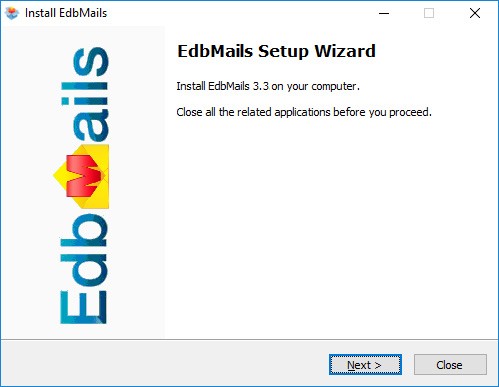
- Download and Install EdbMails application >> Click here to Download
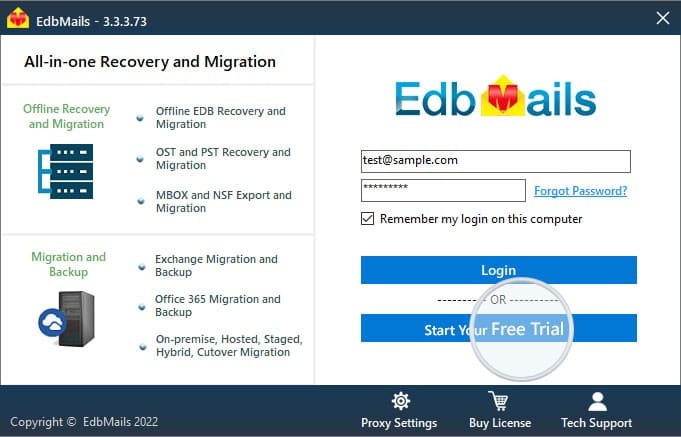
- Click the "Start Your Free Trial" button
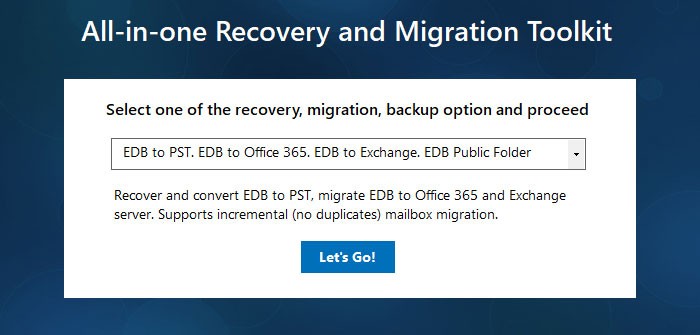
- After the application launch, it allows user to select the export method.
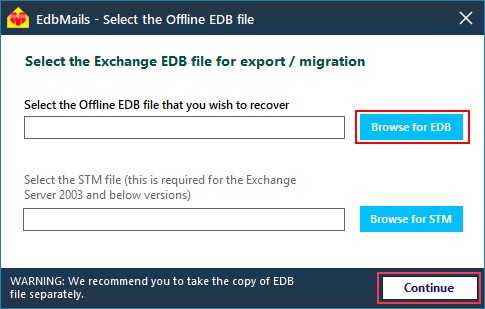
- After selecting the export method, browse EDB file which user wish to recover.
- After the selection of the EDB file, all mailboxes will appear in the left of the application. Below every mailbox, user can able to see structure of the mailbox and can able to export by clicking any of the mailboxes.
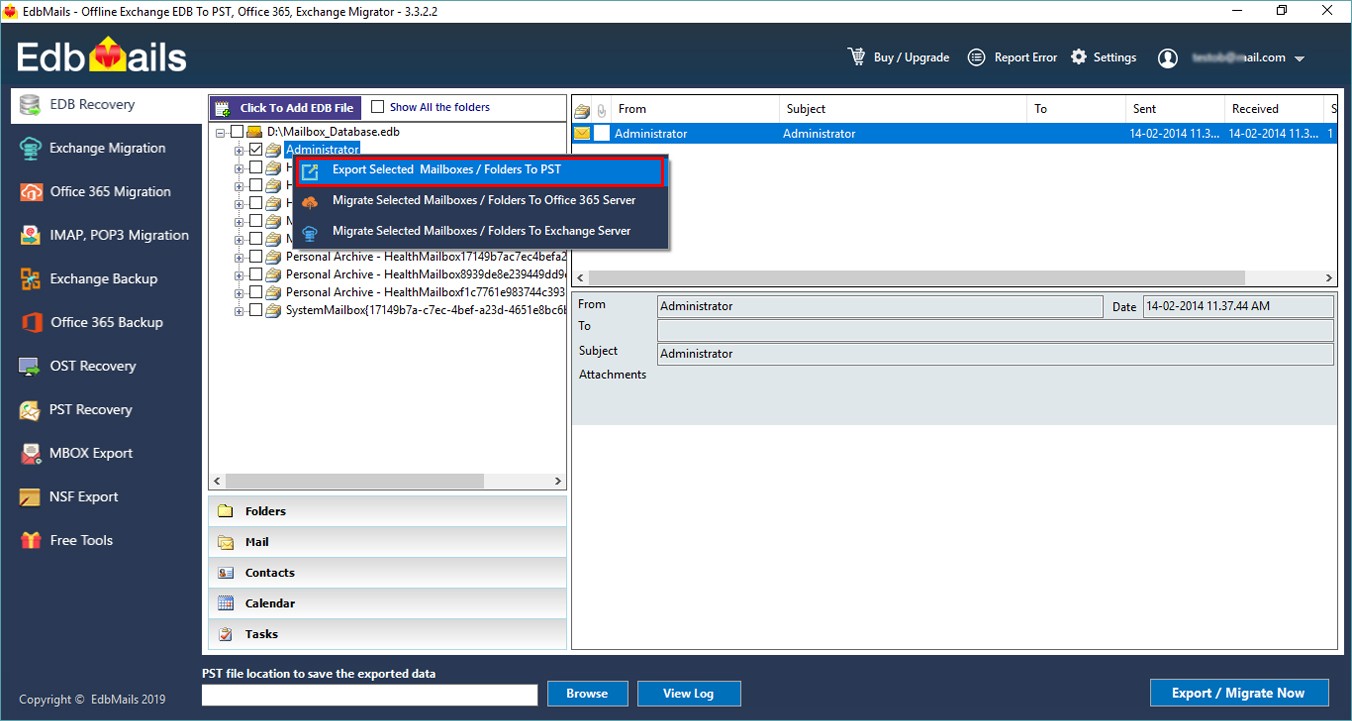
- Click the "Export Selected Mailboxes / Folders to PST file" option to continue.
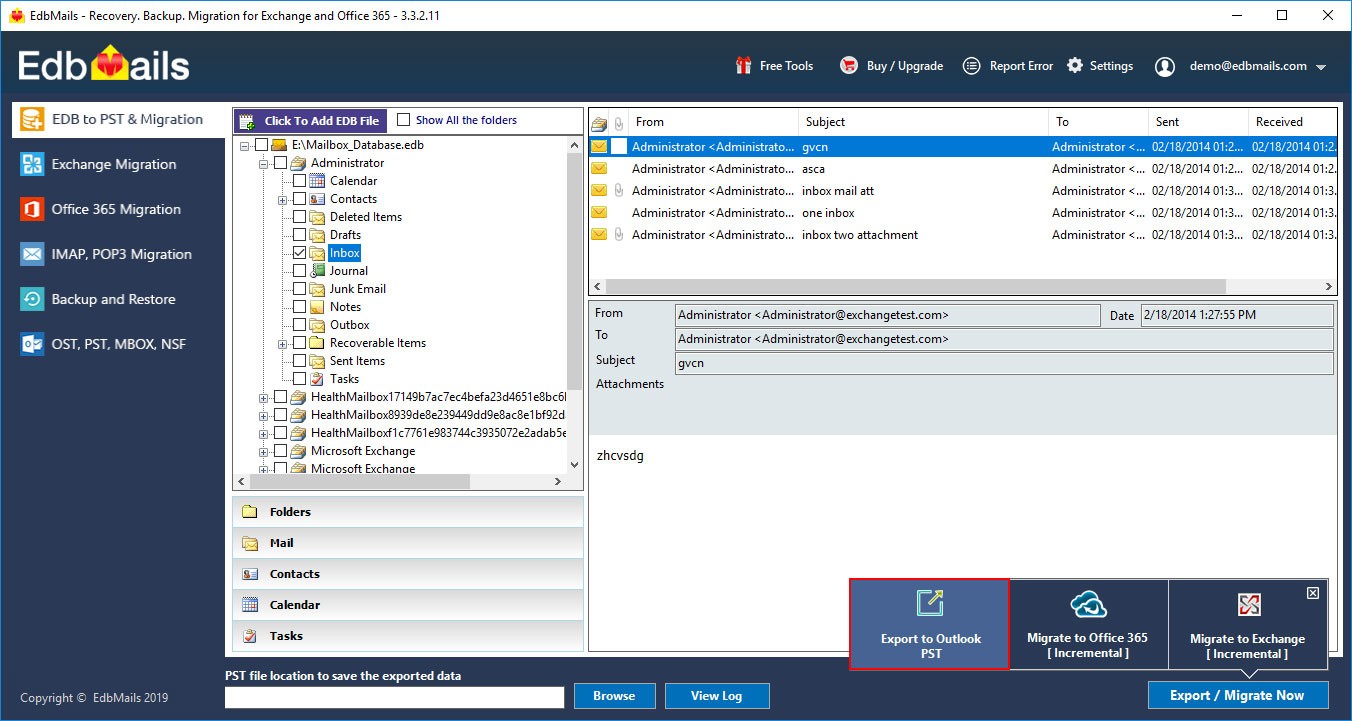
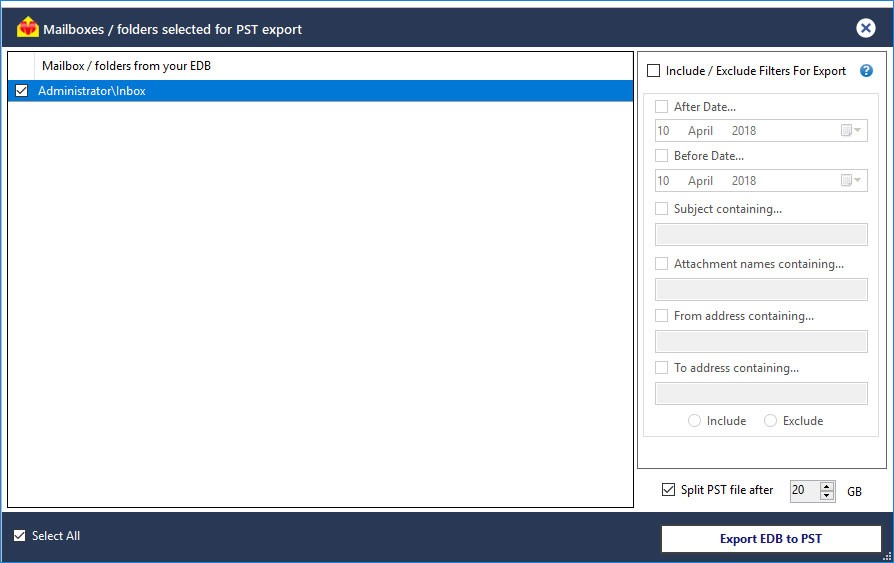
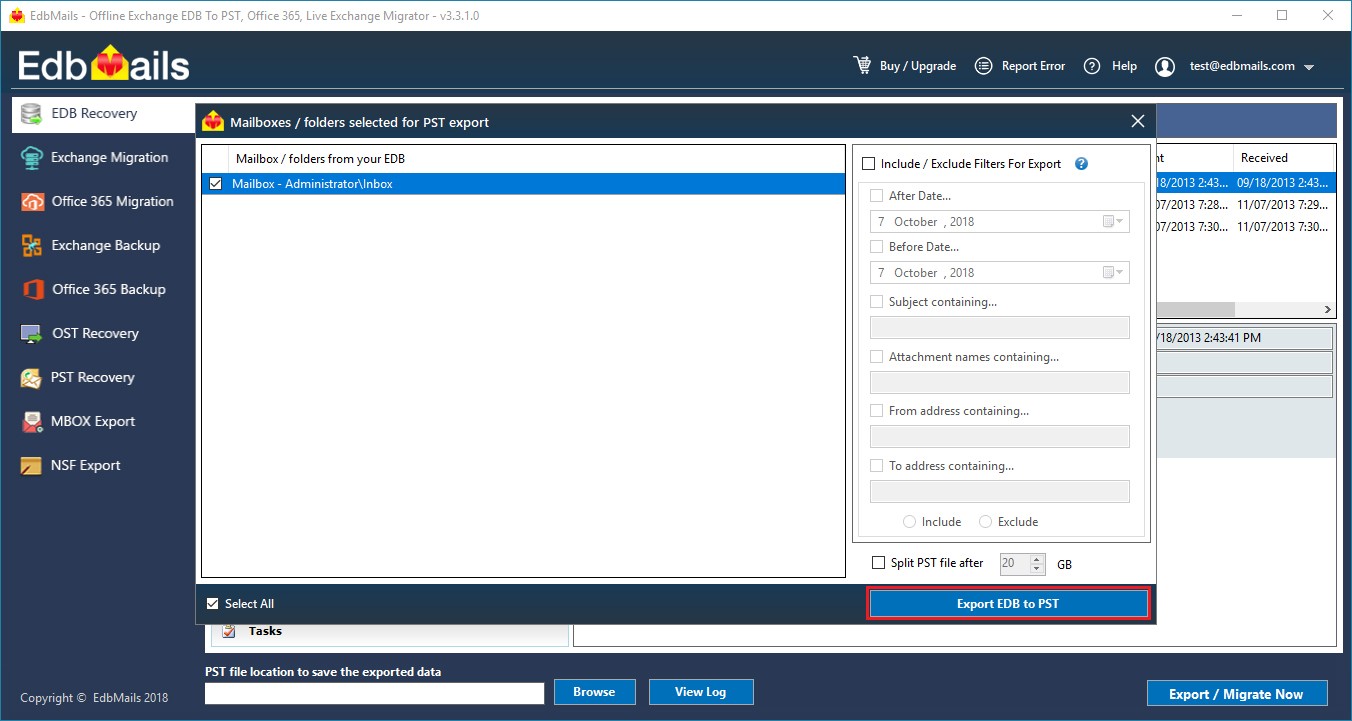
- Choose the needed mailboxes and click on "Export EDB to PST" as shown below
- During export operation, the progress will be displayed as shown in the below screenshot.
Comments
Post a Comment